2

Change Admin Post/Page List Color By Status

Favorite WordPress tip of the week:

This snippet will change the background colors of posts, pages, and custom post types in the administration post/page lists based on their status, i.e. draft, private, pending, etc.

<?php
add_action('admin_footer','posts_status_color');
function posts_status_color(){
?>
<style>
.status-draft { background: #ffffe0 !important ; }
.status-future { background: #cf9 !important; }
.status-publish { /* no background - keep alternating rows */ }
.status-pending { background: #87c5d6 !important; }
.status-private { background:#fc9; }
</style>
<?php
}

Note: Draft color changed to a slightly lighter yellow than original.

0

Get the Current Page URL

I am working on a site now where I need to use the current page URL as a condition to determine where the main menu links will lead. This function has made an easy task of it:

// Get current page URL
function curPageURL() {
    $pageURL = 'http';
    if ($_SERVER["HTTPS"] == "on") {$pageURL .= "s";}
    $pageURL .= "://";
    if ($_SERVER["SERVER_PORT"] != "80") {
     $pageURL .= $_SERVER["SERVER_NAME"].":".$_SERVER["SERVER_PORT"].$_SERVER["REQUEST_URI"];
    } else {
     $pageURL .= $_SERVER["SERVER_NAME"].$_SERVER["REQUEST_URI"];
    }
    return $pageURL;
}
0

Komodo Snippet for Comment Banners

I like to keep my code organized and easy to read, but since I am almost always working on a tight deadline, I do not always have time to organize and comment my code as well as I would like to. Shortcuts that aid in keeping my code organized are more likely to get used than their longer counterparts. Comment banners are one way to keep code organized, especially in large files.

In Komodo, the following snippets will turn highlighted text into a comment banner, or if no text is selected, pop up a dialog box asking for the Banner Title. After inserting the banner, the cursor will be be positioned below it. These snippets will work for any code editor, IDE, etc. if you leave out the [[%(s:orask:Banner Title)]] or replace it with whatever works for your software.

You can set a key binding for this shortcut in the ‘Key Binding’ tab of the snippet properties dialog window.

To create a new snippet in Komodo Edit or IDE, open up the Toolbox pane (View > Tabs & Sidebars > Toolbox), and either click on the gear icon and choose ‘New Snippet’, or right-click on a folder where you want to store the snippet and choose ‘New Snippet’.

The snippet dialog box will appear. Give the snippet a title, and place the following text into the larger text box:

PHP, C, C++, C#, Java, JavaScript, ActionScript, etc.:

///////////////////////////////////////////////////////////////////////////
// [[%(s:orask:Banner Title)]]
///////////////////////////////////////////////////////////////////////////

PHP, JavaScript, CSS, ActionScript, C, C++, C#, Java, JavaScript, PHP, etc.:

/*/////////////////////////////////////////////////////////////////////////
// [[%(s:orask:Banner Title)]]
/////////////////////////////////////////////////////////////////////////*/

Small Banner:

/* --------------- [[%(s:orask:Banner Title)]] --------------- */

HTML, HTML5, XHTML:

<!------------------- [[%(s:orask:Banner Title)]] ---------------------->

The important part is the interpolation shortcut ([[%(s:orask:Banner Title)]]). You can make the banner look however you like as long as the text is wrapped in code that denotes a comment. Make sure to position the cursor a line or two below the banner.

Check the box for ‘Maintain selected text or cursor position after insertion’. The second check box is optional, but recommended. When you are finished, the box should look something like this:

Komodo PHP Comment Banner Snippet

Komodo PHP Comment Banner Snippet

Click ‘OK’ to save the snippet.

To use the snippet, highlight or enter the banner text and double-click on the snippet in your Tools pane or type your keyboard shortcut. Your banner will be inserted and the cursor will be positioned and ready for the next line of code.

0

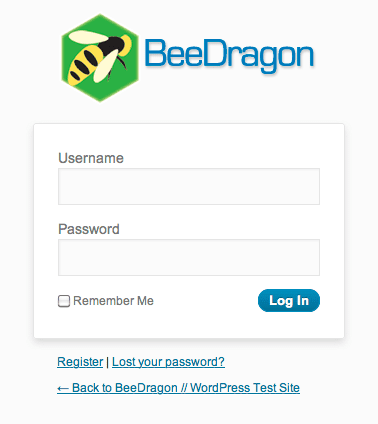
Customize the WordPress Login Page

Customize the WordPress Login Page

Custom Login Page

Custom Login Page

I love WordPress and am personally very happy to see the WordPress logo when I log into a site, but when building sites for some clients (and on my own development site where I build sites for clients to preview), it is nice to use their own logo for the login page. It gives a more professional look and fits in with the rest of their branding.

This snippet will use a custom logo instead of the WordPress default logo.

1. Upload your logo to the server, either manually or through the WordPress media library. It is best if the logo image is 326×82 px or smaller.

2. In your theme’s functions.php file, add this code:

// login page logo
function custom_login_logo() {
    echo '<style type="text/css">h1 a { background: url('.get_bloginfo('url').'/PATH_TO_IMAGE/YOUR_IMAGE.png) 50% 50% no-repeat !important; }</style>';
}
add_action('login_head', 'custom_login_logo');

Replace PATH_TO_IMAGE/YOUR_IMAGE.png with the path to your logo image, i.e. images/logo.png.

To customize the entire login page (including the logo), you can use a similar function to call a custom stylesheet for the login page:

// custom login page
function custom_login_page() {
	echo '<link rel="stylesheet" type="text/css" href="' . get_bloginfo('stylesheet_directory') . '/customlogin.css" />';
}

add_action('login_head', 'custom_login_page');
0

Display Custom Fields In & Out of The Loop

INSIDE THE LOOP:

<?php

if ( get_post_meta($post->ID, 'custom-field-name', true) ) :
	echo get_post_meta($post->ID, 'custom-field-name', true);
	endif;

?>

OUTSIDE THE LOOP:

<?php

	global $wp_query;
	$postid = $wp_query->post->ID;
	echo get_post_meta($postid, 'custom-field-name', true);
	wp_reset_query();

?>
0

Numbered Search Results in WordPress

I needed to show search results in an ordered list for a project I am working on and was very surprised to discover how involved this is for paginated search results. Showing the results using a regular ordered list starts the list numbering over at 1 on each new page of results, even though the next set of results was being displayed.

After some horribly hacky solution involving grabbing the page number from the URL and hard coding the number of posts per page, I was led in the right direction by NicktheGeek at StudioPress who suggested getting the number of posts per page from the query string and using the paged value to get the numbers dynamically before applying the math to get the list numbers to display correctly.

A bunch of CSS was required to make the list numbers look like they were actually generated by an <ol> tag. Styling will vary depending on your theme, but one thing that may help if things are looking messed up is to display the post/page titles and contents inline.

CSS:

.search-results #content h2.entry-title,
.search-results #content .post,
.search-results #content .page {
	display: inline;
}

PHP:
For non-Genesis themes, leave out the genesis_ lines.

global $paged;
if(empty($paged)) $paged = 1;

$loop_counter = 1;

$results_per_page = get_query_var('posts_per_page');

echo '<ol class="search-list">';

genesis_before_post();

if ( have_posts() ) : while ( have_posts() ) : the_post();

	if( $paged == 1 ) {
		$real_count = $loop_counter;
	} else {
		$real_count = $loop_counter + ( $paged * $results_per_page - $results_per_page);
	}

	echo '<li><span class="listnum">' . $real_count . '.</span>';

	// The Post

	echo '</li>';

	genesis_after_post();

	$loop_counter++;

	endwhile;
	genesis_after_endwhile();

else :
	genesis_loop_else();
endif;

echo '</ol>';
7

Genesis: Remove/Change post info/post meta

// Remove post meta
remove_action('genesis_after_post_content', 'genesis_post_meta');
// Customize the post meta function
add_filter('genesis_post_meta', 'post_meta_filter');
function post_meta_filter($post_meta) {
if (!is_page()) {
    // Spaces are added to [ shortcodes ] for display. Do not include.
    $post_meta = 'Filed Under: [ post_categories ], Tagged: [ post_tags ]';
    return $post_meta;
}}
// Remove the post info function
remove_action('genesis_before_post_content', 'genesis_post_info');
// Customize the post info function
add_filter('genesis_post_info', 'post_info_filter');
function post_info_filter($post_info) {
if (!is_page()) {
    // Spaces are added to [ shortcodes ] for display. Do not include.
    $post_info = '[ post_date ] by [ post_author_posts_link ] at [ post_time ] [ post_comments ] [ post_edit ]';
    return $post_info;
}}

Please note that you do not need to remove the functions before editing them. Hat tip to jim :)

1

Genesis: Custom loop arguments

remove_action('genesis_loop', 'genesis_do_loop');
add_action('genesis_loop', 'custom_do_cat_loop');

function custom_do_cat_loop() {
    global $query_args;  // any wp_query() args
    $args= array('orderby' => 'title', 'order' => 'ASC');
    genesis_custom_loop(wp_parse_args($query_args, $args));
}
0

Genesis: Custom Page Template

<?php // Template Name: Template Name Here

remove_action('genesis_loop', 'genesis_do_loop');
add_action('genesis_loop', 'custom_loop');

function custom_loop() {
    global $paged;
    $args = array('post_type' => 'PostType'); // any wp_query args can go here
    genesis_custom_loop( $args );

}

genesis();
0

Genesis: Default Post Thumbnail

// Default post thumbnail
add_filter('genesis_get_image', 'default_image_fallback', 10, 2);
	function default_image_fallback($output, $args) {
			global $post;
			if( $output || $args['size'] == 'full' )
					return $output;

			$thumbnail = CHILD_URL.'/images/thumb.jpg';

			switch($args['format']) {

					case 'html' :
							return '<img src="'.$thumbnail.'" class="alignleft post-image" alt="'. get_the_title($post->ID) .'" />';
							break;
					case 'url' :
							return $thumbnail;
							break;
				 default :
						 return $output;
							break;
			}
	}